Gmail does not have a built-in feature that allows you to add accented letters to your email messages. To insert accented letters in Gmail, you must either use a Unicode character generator, alt/option key codes, the macOS accent menu, or the “Easy Accent Marks” Google Chrome extension.

In this article, I will guide you through seven (7) methods you can use to write accented letters in Gmail.
1 – Write accents in Gmail using A Unicode Character Generator
1 – Go to unicode-table.com.
2 – Search for the accented letter you would like to use in the search bar. (example: “e with acute”)

3 – In the search results, hover your cursor over the accented letter and click the copy button.

4 – Return to the email you were composing in Gmail
5 – Place your cursor in the text of your email where you would like to add the accented letter.
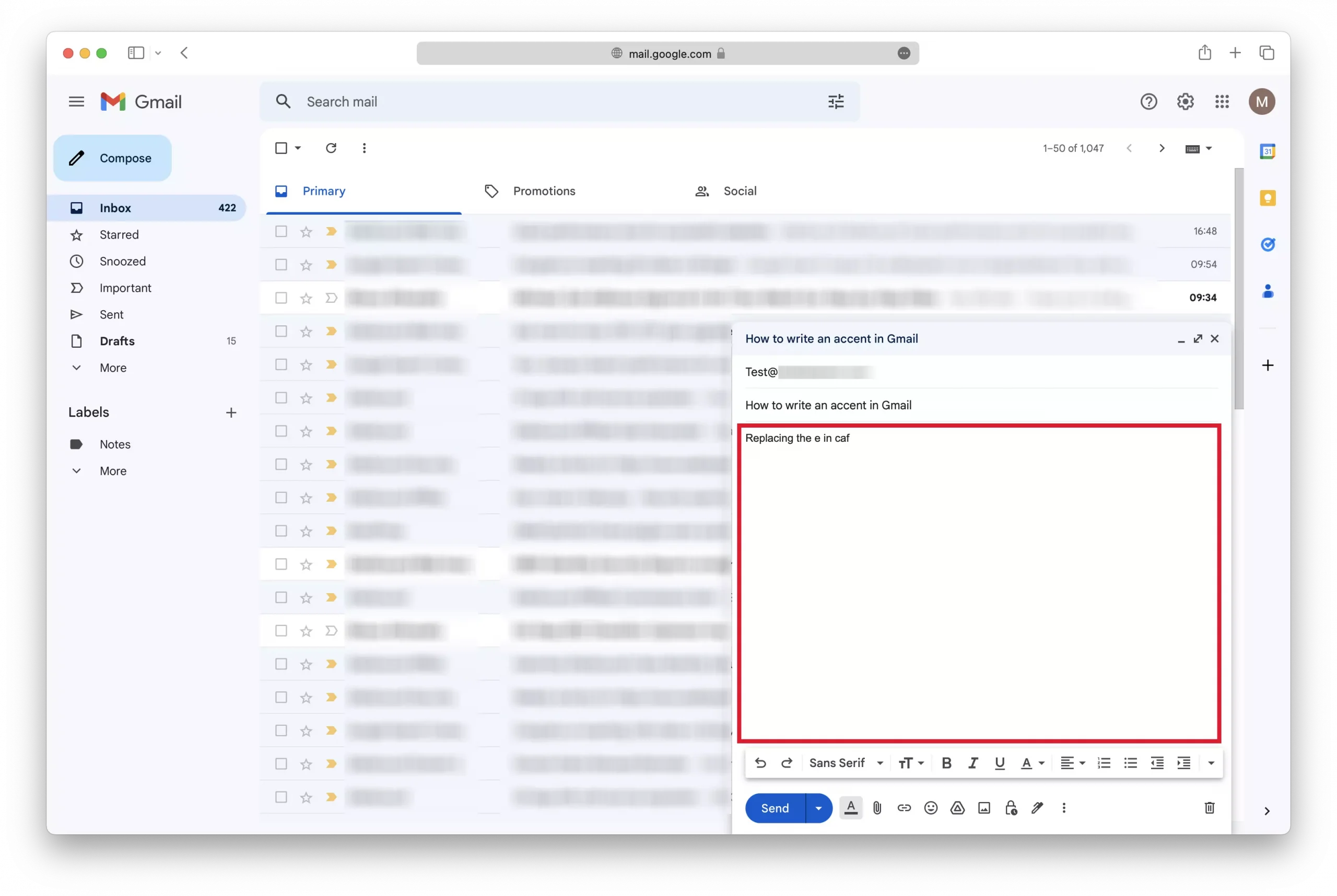
6 – Press “ctrl-v” or “Command-v” to paste in the accented letter you copied.
2 – Write Accents in Gmail Using the Easy Accent Marks Google Chrome Extension
1 – Go to the “Easy Accent Marks” download page.
2 – Click the “add to chrome” button to install the extension.

3 – Once installed, return to Gmail and open the email that you were composing.
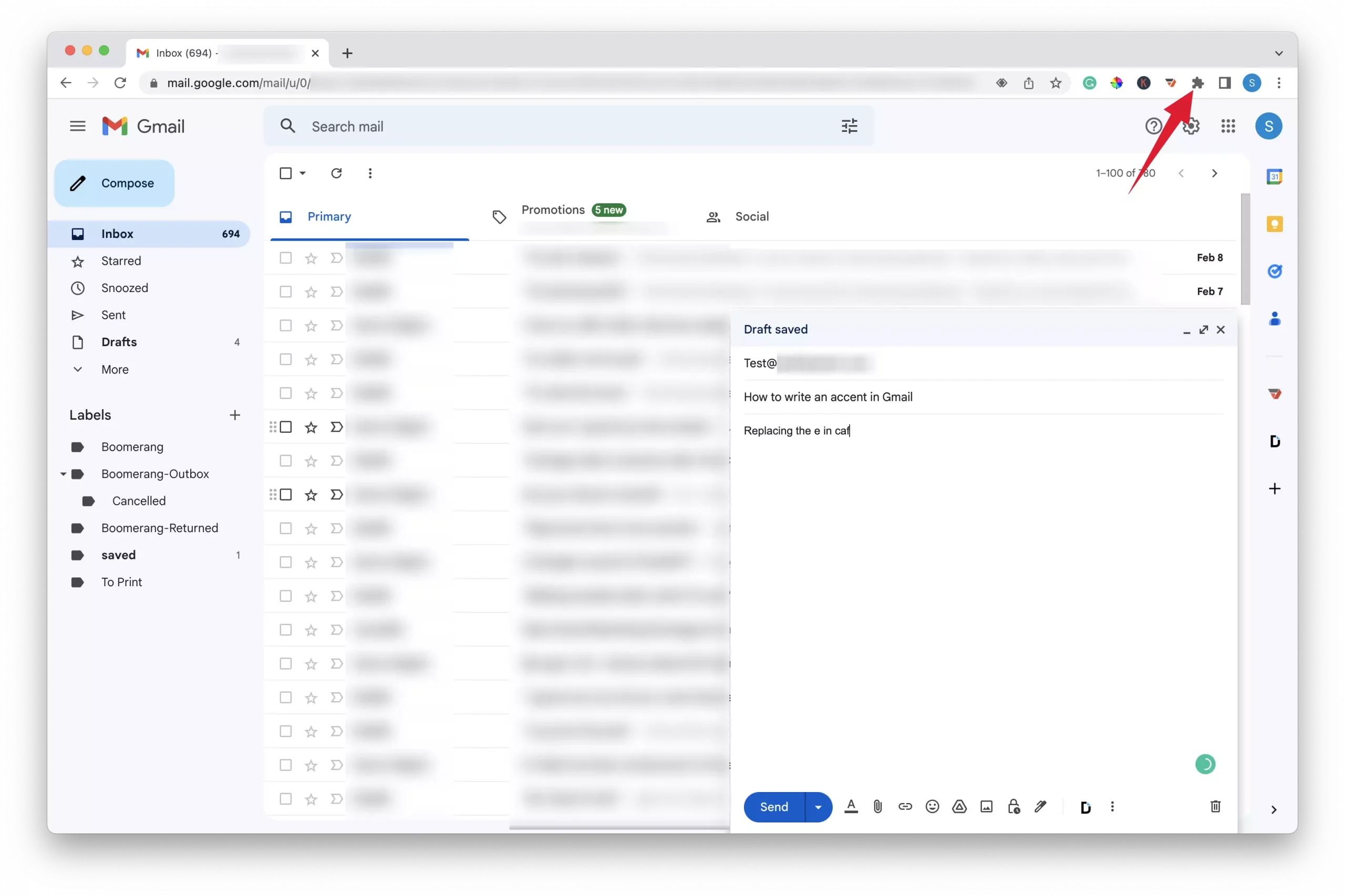
4 – Click on the all extensions icon on the right side of the Google Chrome browser’s address bar.
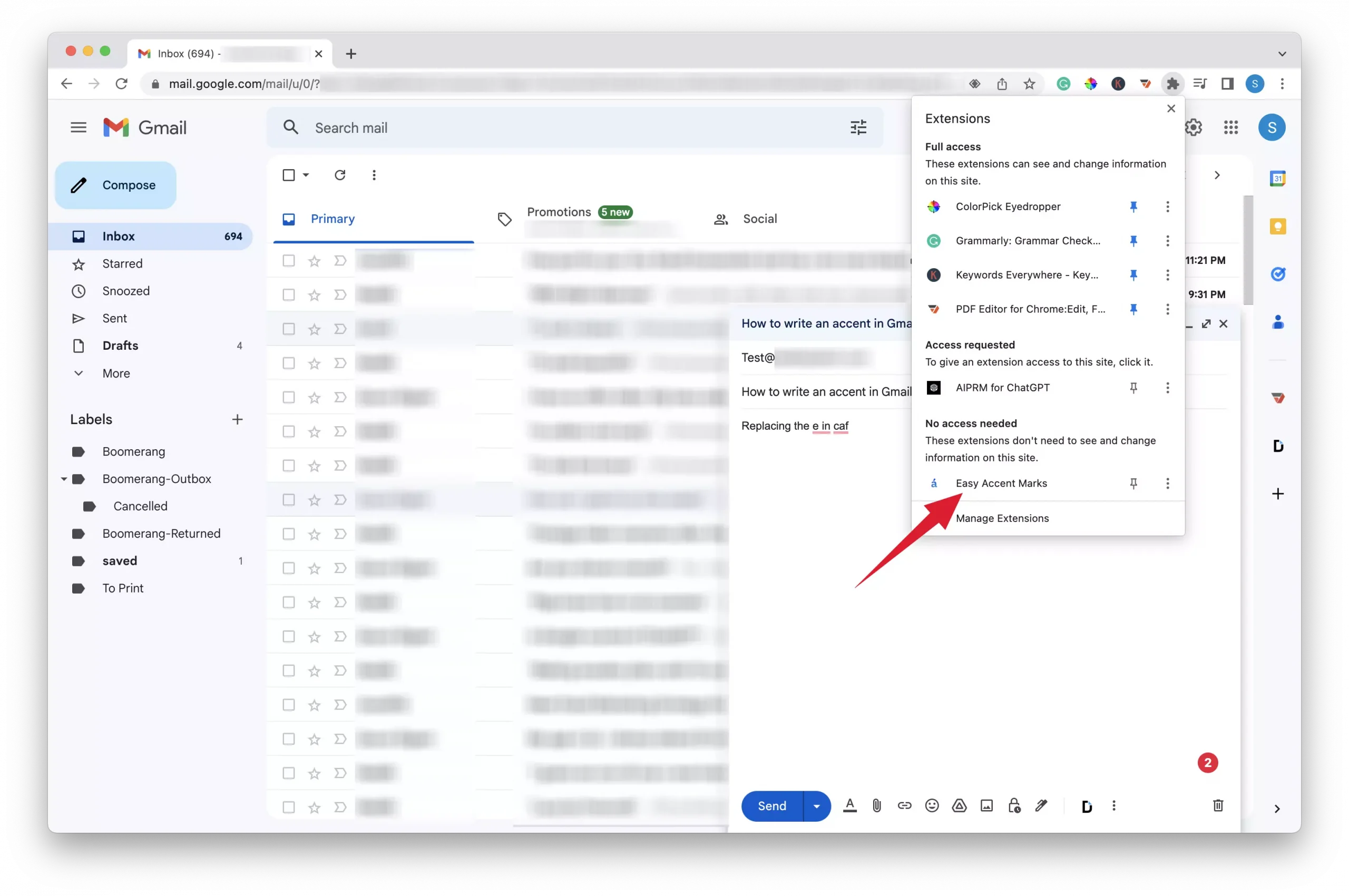
5 – From the list of available extensions, click on the “Easy Accent Marks” extension.
6 – Click on the accented letter that you want to use to copy it.

7 – Place your cursor in the text of your email where you would like to add the accented letter.

8 – Press “command-v” or “ctrl-v” to paste it in.
3 – Write accents in Gmail using ALT codes (Windows 10 And 11)
You can only enter Alt codes using the numerical keypad on your keyboard and not the row of numbers at the top. Therefore, this method requires a full-size keyboard or a dedicated numerical keypad.
1 – Log in to your Gmail account and open the email you were writing.
2 – Place your cursor in the text where you would like to insert the accented letter.
3 – Reference the table below to find the alt code of the accented letter you want to add to your email.
4 – Enable NumLock if it is disabled.
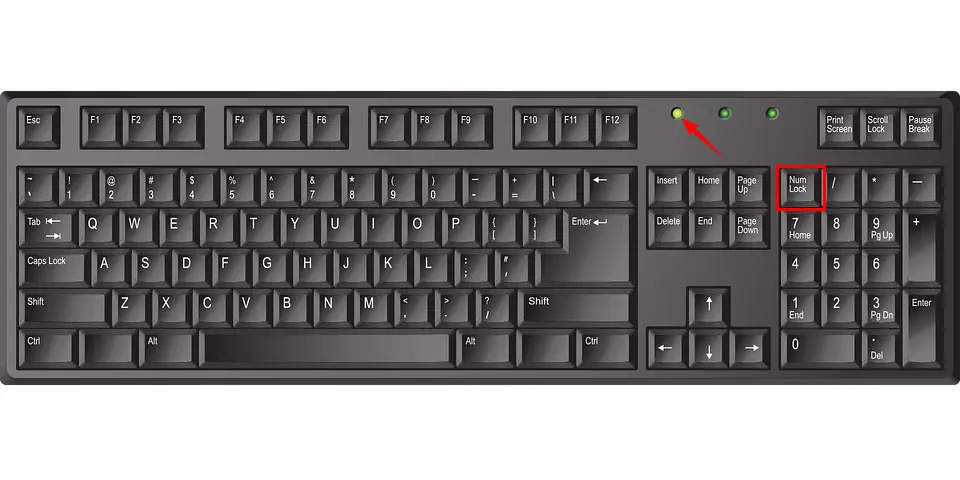
5 – Press and hold down the “Alt” key on your keyboard.
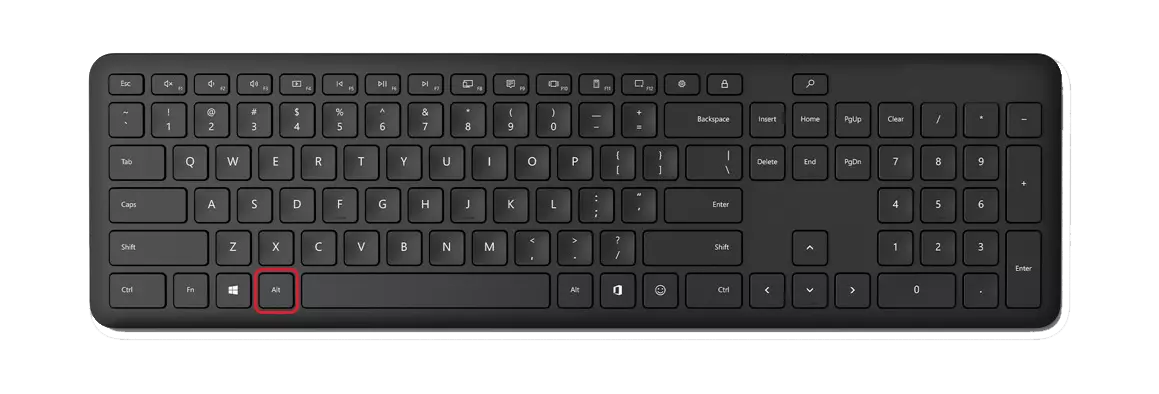
6 – Using the dedicated numeric keypad, enter the ALT code that corresponds with the accented letter you selected.

| Character | ALT Code | Character | ALT Code |
|---|---|---|---|
| À | Alt 0192 | à | Alt 0224 |
| Á | Alt 0193 | á | Alt 0225 |
| Â | Alt 0194 | â | Alt 0226 |
| Ã | Alt 0195 | ã | Alt 0227 |
| Ä | Alt 0196 | ä | Alt 0228 |
| Ç | Alt 0199 | ç | Alt 0231 |
| È | Alt 0200 | è | Alt 0232 |
| É | Alt 0201 | é | Alt 0233 |
| Ê | Alt 0202 | ê | Alt 0234 |
| Ë | Alt 0203 | ë | Alt 0235 |
| Ì | Alt 0204 | ì | Alt 0236 |
| Í | Alt 0205 | í | Alt 0237 |
| Î | Alt 0206 | î | Alt 0238 |
| Ï | Alt 0207 | ï | Alt 0239 |
| Ñ | Alt 165 | ñ | Alt 164 |
| Ò | Alt 0210 | ò | Alt 0242 |
| Ó | Alt 0211 | ó | Alt 0243 |
| Ô | Alt 0212 | ô | Alt 0244 |
| Õ | Alt 0213 | õ | Alt 0245 |
| Ö | Alt 0214 | ö | Alt 0246 |
| Š | Alt 0138 | š | Alt 0154 |
| Ú | Alt 0218 | ù | Alt 0249 |
| Û | Alt 0219 | ú | Alt 0250 |
| Ü | Alt 0220 | û | Alt 0251 |
| Ù | Alt 0217 | ü | Alt 0252 |
| Ý | Alt 0221 | ý | Alt 0253 |
| Ÿ | Alt 0159 | ÿ | Alt 0255 |
| Ž | Alt 0142 | ž | Alt 0158 |
4 – Write accents in Gmail using the macOS accent menu
1 – Log in to your Gmail account and open the email you were writing.
2 – Place your cursor in the text of your email where you would like to add the accented letter.
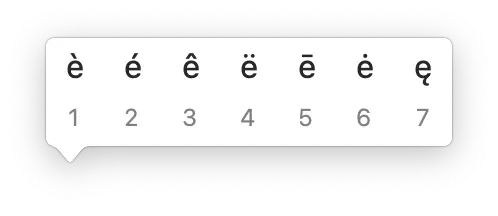
3 – Press and hold down the key on your keyboard for the letter you want to add the accent to until a list of options appears above the letter. (example: press and hold the “e” key)
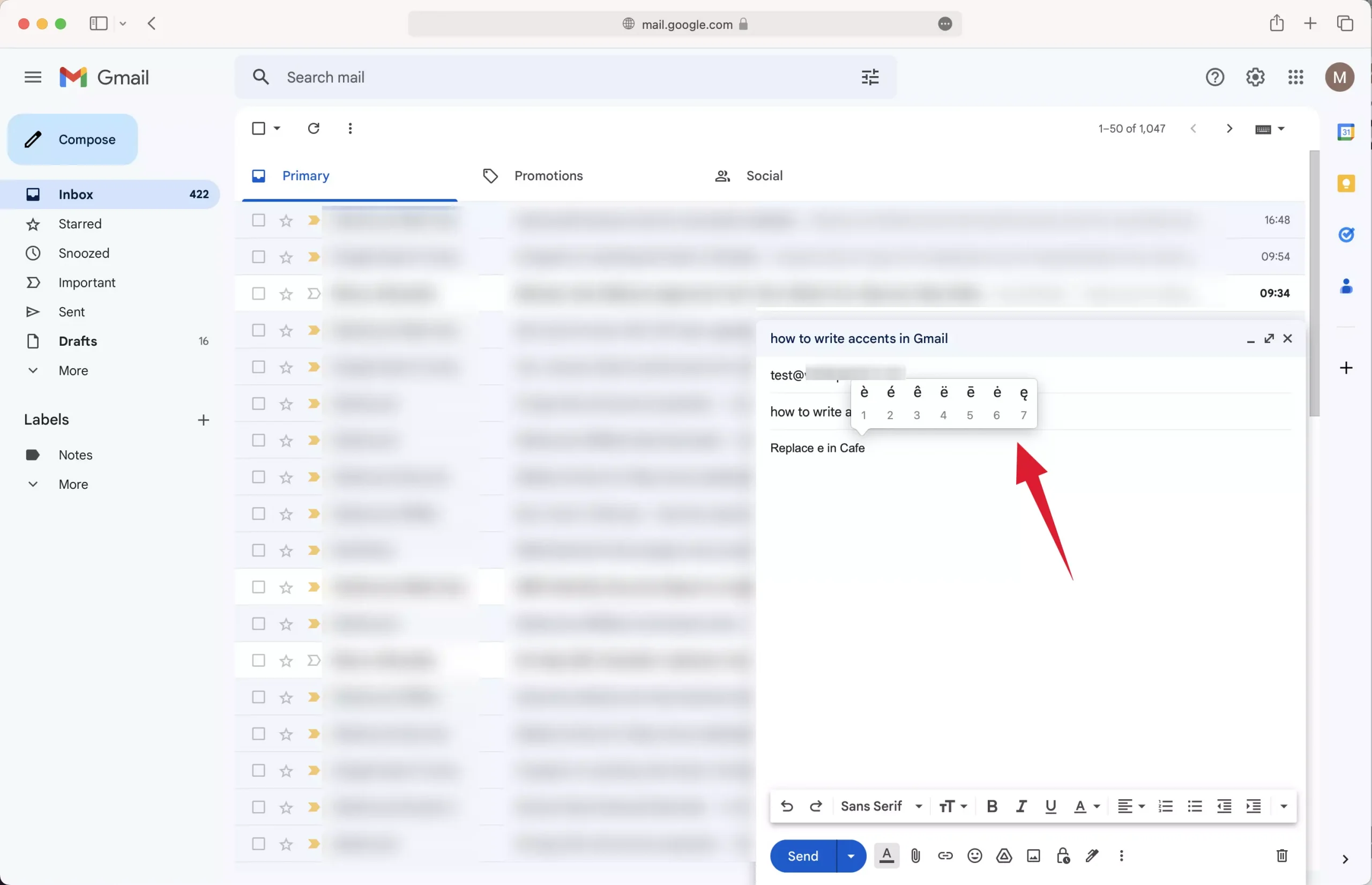
4 – From the list of options, press the number key on your keyboard that corresponds with the type of accent you want to use.
5 – Write accents in Gmail using the option key on the Mac
1 – Open the email that you were composing.
2 – Place your cursor in the text of your email where you would like to add the accented letter.
3 – Reference the table below to find the key that corresponds with the type of accent you want to use.
4 – Press and hold down the option key.

5 – Press the key for the accent type you want to add to the letter. (Example: option-e with print an acute accent)
6 – Release the option key and immediately press the letter to which you want to add the accent.
| Accent Type | Key |
|---|---|
| ` | Option + ` |
| ´ | Option + e |
| ˆ | Option + i |
| ˜ | Option + n |
| ¨ | Option + u |
| å | Option + u |
| ç | Option + u |
6 – Write accents in Gmail Using Windows Character Map
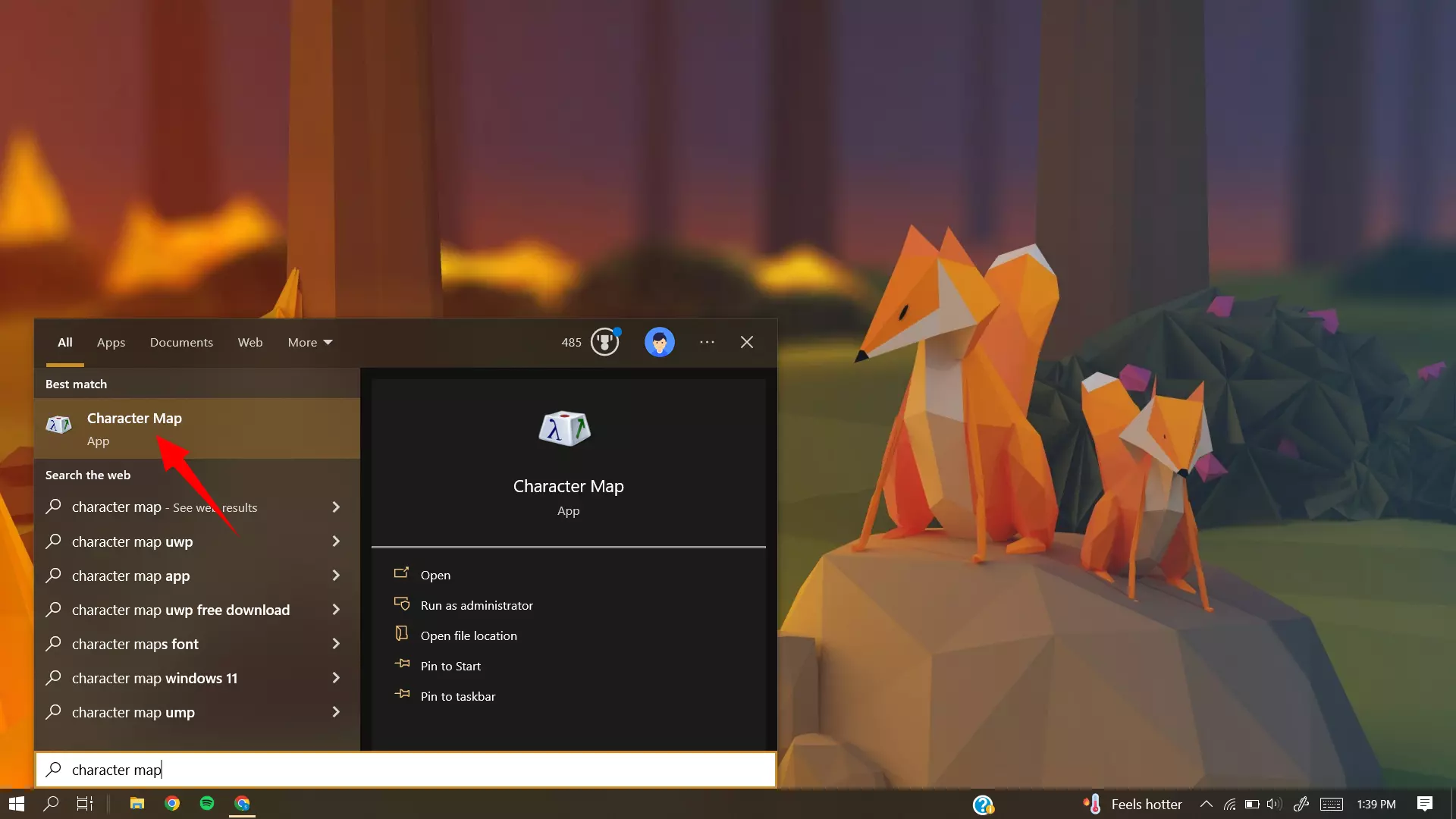
1 – Open the start menu and type the words character map.

2 – Click on the character map app from the search results.
3 – Select the font you want to use from the font dropdown menu at the top of the window.
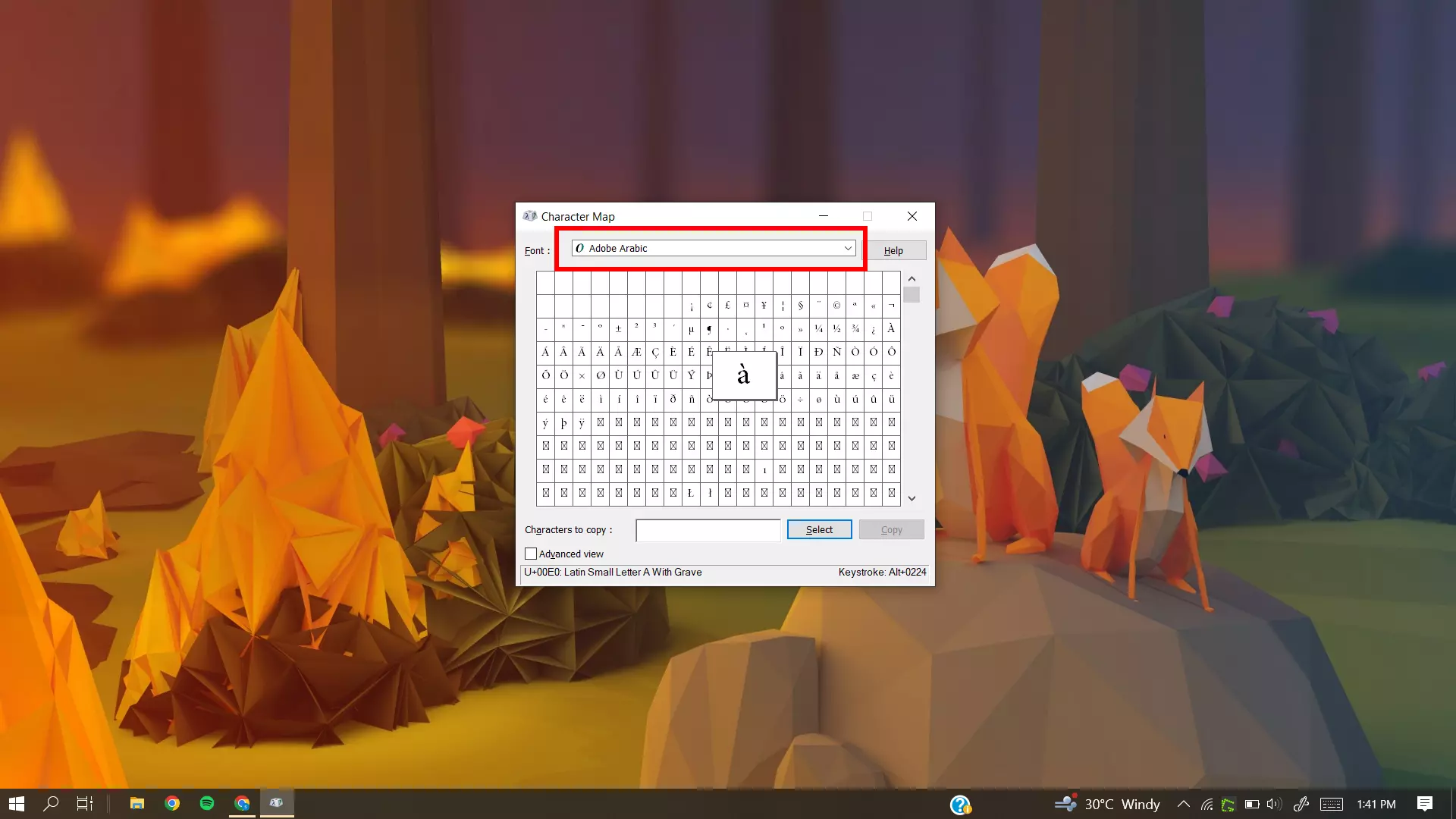
4 – Scroll through the list of characters and click on the accented letter you want to use.

5 – Copy the accented letter by first clicking the select button and then clicking the copy button.
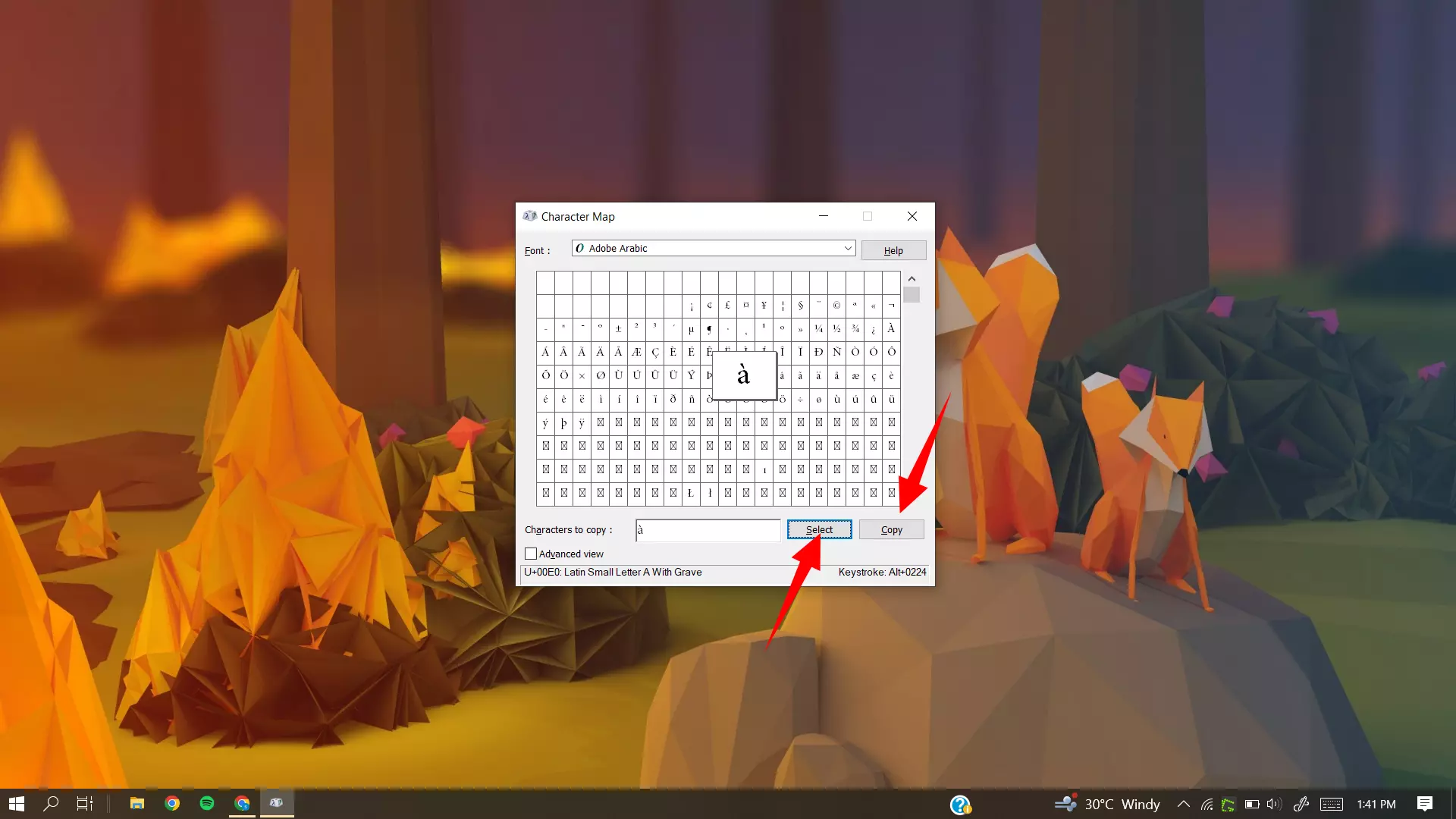
6 – Return to Gmail and place your cursor in the text of your email where you would like to add the accented letter.

7 – Press ctrl-v to paste in the accented letter.

7 – Write accents in Gmail Using macOS Character Viewer
1 – Go to Gmail and open the email that you were composing.
2 – Place your cursor in the text of your email where you would like to add the accented letter.
3 – Press the globe key or “Command-Control-Space” to open the onscreen emoji keyboard.

4 – Click on the icon at the top right of the emoji keyboard to expand the character viewer.
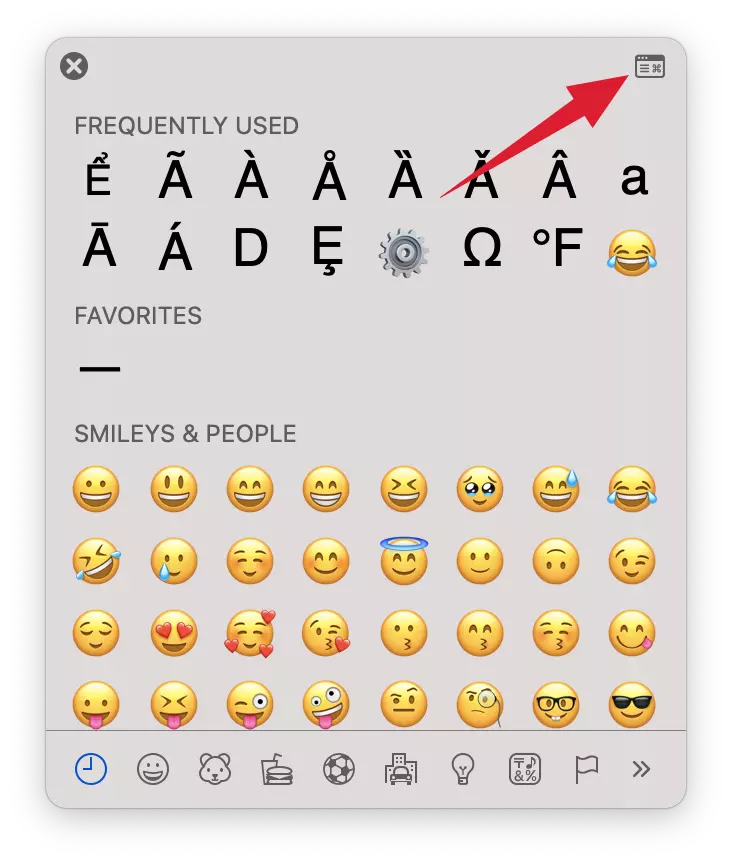
5 – Filter the character viewer to show only Latin characters.

6 – Scroll down to the accented Latin characters section.
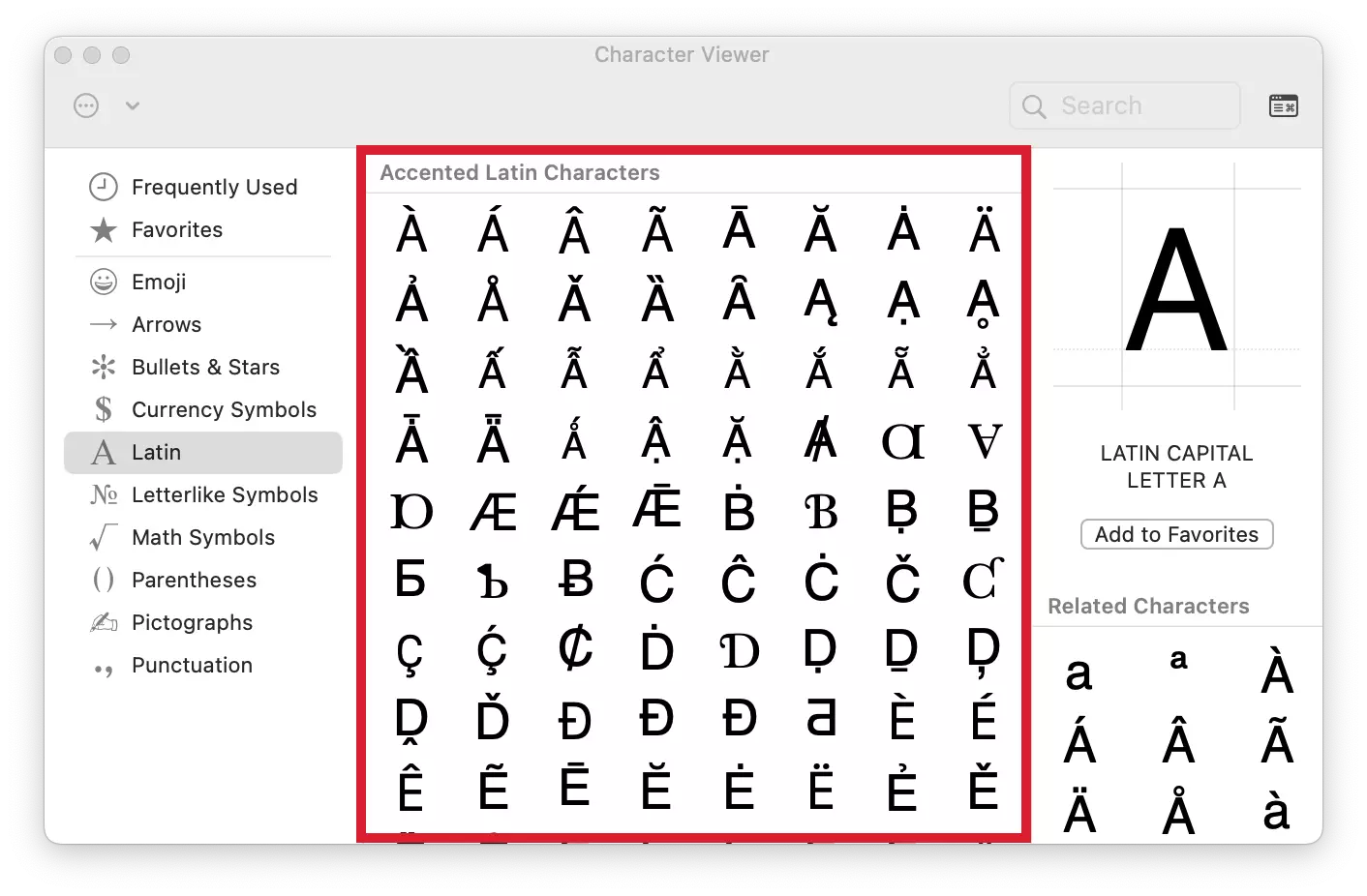
7 – Find the accented letter you want to use and double-click on it to insert it where you placed your cursor.
Keep Learning
Writing accented letters in gmail is just the beginning! Read out article on inserting emojis in Gmail to learn how to transform your emails into vibrant masterpieces that leave a lasting impression!